FluentCRM Automation Not Triggering? 9 Causes and Fixes
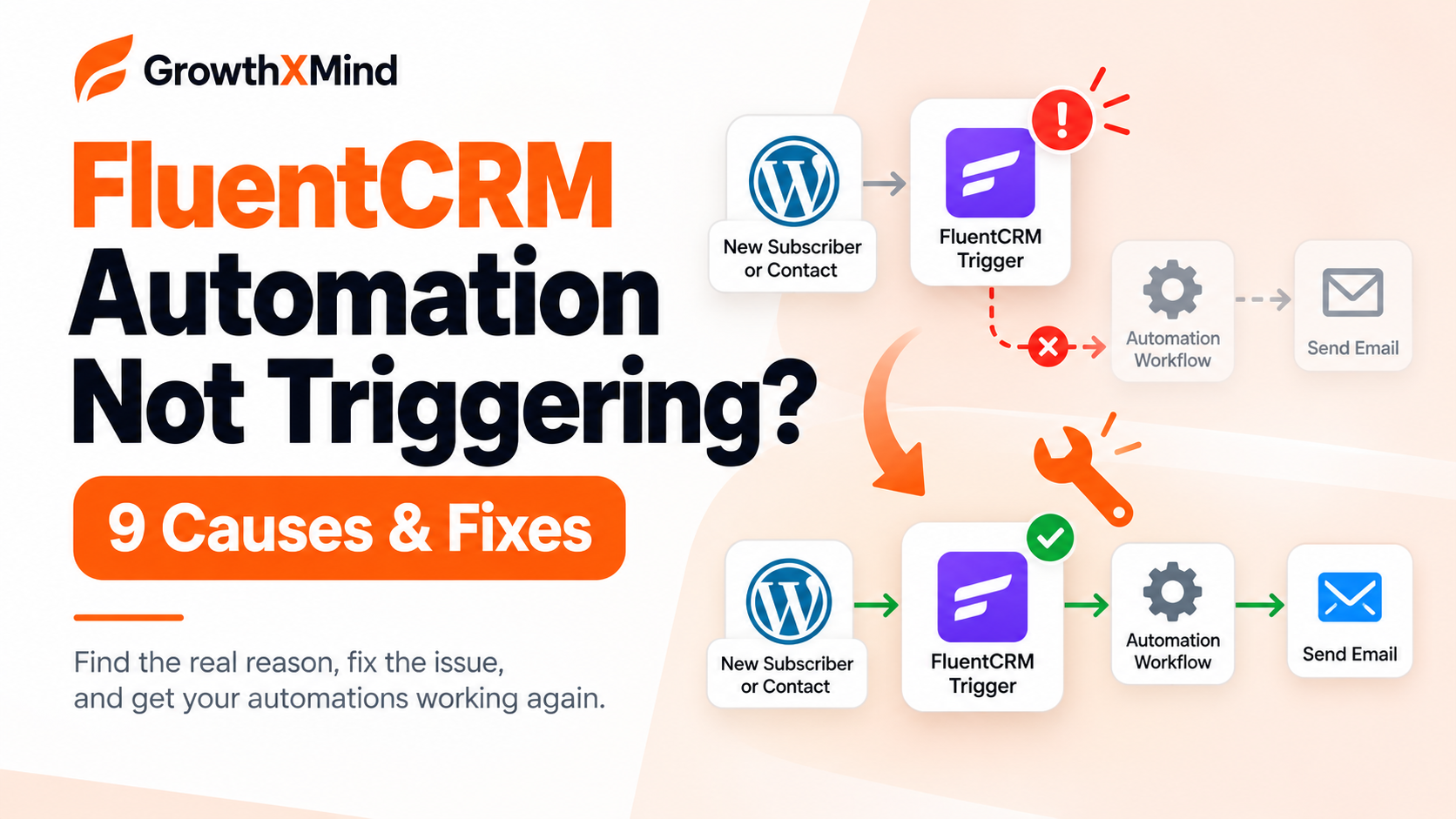
FluentCRM automation not triggering? First check whether the automation is published, whether its trigger conditions match the contact event, and whether the contact actually entered the funnel. If the contact entered but emails or delayed actions are stuck, inspect FluentCRM → Settings → System Admin Tools → Cron Job Monitor and the automation logs. These checks identify whether the failure happened before the trigger, inside the workflow, or during scheduled processing.
Picture a common situation: a visitor submits a form, becomes a contact, and you expect a welcome email. The contact appears in FluentCRM, but the email never arrives. It is tempting to rebuild the entire funnel. That would be premature: a missed trigger, a contact filter, a pending wait step, a stopped cron, and a delivery failure can all look identical from the inbox. This guide separates them without pretending that one fix works for every WordPress installation.
Quick diagnosis: where did the automation stop?
| What you observe | Most useful first check |
|---|---|
| No contact entry in the funnel | Automation status, trigger event, conditions, existing-contact behavior |
| Contact entered but is waiting | Wait/delay action, timezone, scheduled automation jobs |
| Action ran but email did not arrive | Sending log, SMTP provider, suppressions, email status |
| Many workflows stopped together | Cron Job Monitor, REST API, firewall and system logs |
| Only one contact is affected | That contact’s status, tags, lists, automation history and re-entry rules |
Do this with a safe test contact you control. Write down the contact email, action time, expected trigger, and actual result; those four details make every subsequent check faster.
1. Confirm the automation is published and the right trigger is selected
Open FluentCRM → Automations and choose the relevant funnel. Confirm it is active/published rather than paused or left as a draft. Then open the starting trigger. A “new contact” trigger is not interchangeable with a “tag applied,” “list applied,” “form submitted,” or “user signed up” trigger. The event that actually happened must match the trigger you configured.
- Read the trigger label, not only the funnel name.
- If the event comes from another plugin, confirm the intended integration is active and supported.
- Review whether the trigger is restricted to a particular list, tag, form, role, or subscription status.
- Create a new safe test contact and reproduce the exact event once.
- Check whether the funnel records an entry for that contact.
Some trigger types and actions require FluentCRM Pro. If an expected trigger is unavailable, check your installed edition and official feature documentation rather than assuming a technical failure. FluentCRM trigger reference.
2. Check the contact’s subscription status and entry rules
A contact appearing in the CRM does not automatically mean the contact qualifies for your automation. For example, an automation may require a subscribed contact, a specific list, or a newly applied tag. An existing contact may also be treated differently from a brand-new one.
- Open the test contact’s record and inspect subscription status, lists and tags.
- Compare them with the trigger conditions and contact filters.
- Check existing-contact behavior, including skip/update choices or restrictions on repeated entry, where your trigger offers them.
- If a confirmation email is required, complete the opt-in process with the test contact before expecting subscriber-specific actions.
Do not change someone’s consent status solely to force an automation to run. Use a consenting test contact and preserve the site’s permission requirements.
3. Distinguish “automation did not start” from “email was not delivered”
If the contact appears in the automation history, the trigger probably worked. The failure is further downstream. Open the individual contact’s automation activity and locate the last completed step. If the next step is a wait timer, check the due time. If it is an email action, inspect email sending logs and the configured delivery service.
FluentCRM can send through WordPress mail handling or a configured delivery service such as an SMTP plugin/provider like FluentSMTP. A successful automation step is not proof that an email reached the inbox; the provider may reject, defer, or classify it. Check delivery-specific logs before editing the funnel. FluentCRM email delivery guidance.
4. Check Cron Job Monitor before changing your workflow
FluentCRM documents scheduled email sending, email processing, and automation tasks under FluentCRM → Settings → System Admin Tools → Cron Job Monitor. Review whether scheduled hooks have recent successful activity and whether the next-run times advance. If multiple unrelated automations and campaigns are delayed, investigate scheduling before rewriting individual workflows.
FluentCRM recommends approximately one-minute email-sending jobs, five-minute email-processing jobs, and an hourly automation task category. The exact monitor and labels can vary by plugin version; use the monitor’s own status indicators. FluentCRM System Admin Tools.
A critical warning before editing wp-config.php
Do not add define(\'DISABLE_WP_CRON\', true); merely because a blog post says so. That disables WordPress’s traffic-triggered cron; without a working server cron replacement, it can make every scheduled task stop. FluentCRM explicitly warns that disabling WP-Cron and configuring an alternative scheduler must go together. FluentCRM cron checklist.
For a full diagnostic of WordPress scheduling, read WordPress Cron Not Working? 9 Causes and Fixes. It covers loopback requests, hosting cron setup, and delayed scheduled actions.
5. Verify the REST API and security layers
FluentCRM’s administration and background behavior rely on WordPress REST API requests. Its documentation recommends testing the GET, POST, PUT, and DELETE API methods using the system tools. A security plugin, proxy, or Cloudflare rule can interfere with some requests even while the dashboard loads normally.
- Open FluentCRM’s System Admin Tools and review REST API status.
- Check browser developer tools for failed REST calls while reproducing the issue.
- Inspect firewall/security logs for blocked legitimate requests associated with FluentCRM.
- Test any proposed allowlist or cache bypass narrowly and only when justified by logs.
Avoid disabling the entire firewall as a “test fix” on a production site. FluentCRM documents relevant endpoint compatibility considerations in its security and caching guide.
6. Enable system logs and reproduce one controlled failure
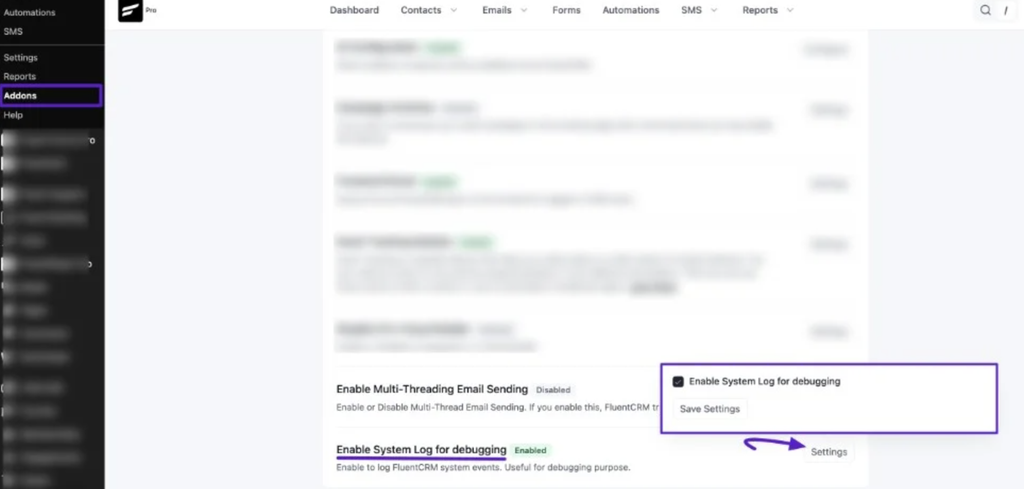
In FluentCRM’s current documentation, logging is enabled from Settings → General Settings. Then go to Settings → System Admin Tools → System Logs. Reproduce one event with a test contact, refresh the log, and compare the timestamp with the contact’s automation activity. The result should answer one precise question: was the trigger detected, was the job scheduled, or did a handler fail?
Remove personal contact details, API keys and authentication headers before sharing logs. If there is no log at all, do not invent one—record the exact action and time and continue with server or plugin support.
7. Inspect wait steps, conditions, goals, and filters
A funnel may technically be running while its next action is blocked by a conditional branch or a wait step. Inspect the path the contact actually followed rather than relying on the diagram alone. Check whether the filter was evaluated before a tag or custom field had been populated.
- Verify the wait interval and timezone.
- Compare the actual contact field values with IF/ELSE conditions.
- Check whether a goal or exit action removed the contact from the sequence.
- Use a temporary, simple test funnel to isolate the trigger from downstream conditions.
8. Check email sending configuration and provider limits
When automation history shows that an email action executed but messages do not arrive, inspect the email queue, provider dashboard, authentication/DNS configuration, and any sending restrictions. SPF, DKIM, and DMARC may affect authentication and deliverability, but they are not substitutes for checking whether FluentCRM handed the message to the sender.
Do not promise inbox delivery based only on FluentCRM marking a message sent. Confirm a controlled message using a mailbox you own and review the provider response.
9. Isolate plugin conflicts or version-specific bugs without breaking the site
If a single feature stopped after a plugin update, record the FluentCRM edition/version, WordPress and PHP versions, and the exact trigger. Reproduce with a safe test contact. On a staging site, isolate integrations or temporarily switch off suspected nonessential plugins one at a time. If the problem affects a paid extension, check the vendor’s support requirements and relevant release notes.
FluentCRM’s WordPress.org support forum includes questions about cron frequency, broken integrations, and database issues. Use those reports as clues—not proof that another person’s fix applies to your environment. FluentCRM public support forum.
How to verify the fix actually worked
- Trigger one controlled test event and capture the time.
- Confirm the contact enters the intended automation.
- Check which steps finished and which are queued or waiting.
- Confirm the scheduled task monitor is healthy if delays are involved.
- For email workflows, check the sender/provider and your test mailbox.
- Repeat once with an existing test contact if re-entry behavior matters.
Frequently asked questions
Why is FluentCRM automation not triggering for an existing contact?
The trigger may be configured for a new event or may skip existing contacts. Check contact status, entry rules, relevant lists/tags, and whether the same event happened after the automation was activated.
Can a broken WordPress cron stop FluentCRM automation?
Yes. Scheduled email and automation jobs depend on reliable background task execution. Check FluentCRM’s Cron Job Monitor and the WordPress cron configuration before editing the funnel.
Does FluentSMTP fix a trigger that never starts?
No. SMTP affects delivery of messages once they are queued for sending. If a contact never enters an automation, investigate the trigger and conditions first.
Should I rebuild the automation from scratch?
Usually not as your first action. Isolate the failed stage with a controlled test, inspect logs, and only rebuild the workflow if its configuration is demonstrably incorrect or corrupted.
What to do next
Begin with the earliest missing event: contact entry, a scheduled step, or email delivery. Fix that one link and repeat the test. Keeping a short record of the exact trigger, contact state, timestamp, and log result will save more time than changing three settings at once.