
WooCommerce Webhook Not Working in n8n? 9 Fixes to Try
WooCommerce webhook not working in n8n? You create a new order, but your automation never starts. Before rebuilding the workflow, check whether WooCommerce sent the event, n8n received it, or a downstream node failed. This guide walks through nine practical fixes, starting with webhook delivery logs and production URL settings.
Start with the two fastest checks: inspect the webhook’s delivery status in WooCommerce, then confirm n8n is listening on the correct production endpoint. The troubleshooting sequence below covers both n8n’s Webhook node and its WooCommerce Trigger node.
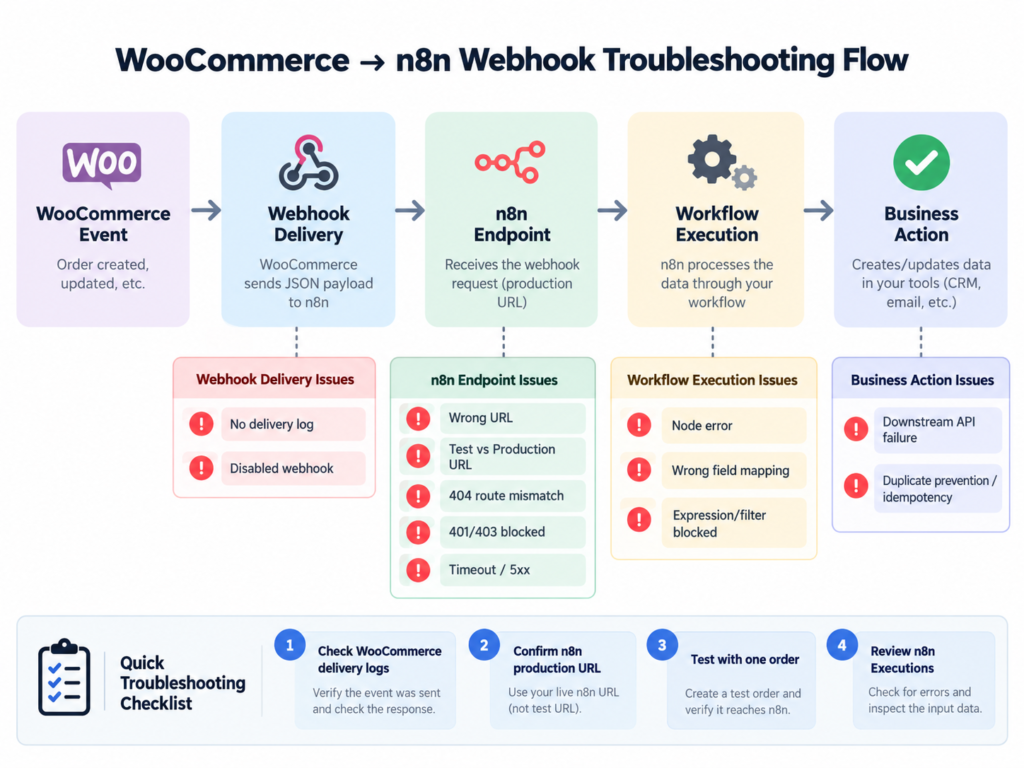
Quick diagnosis: find the broken link
- Check WooCommerce → Settings → Advanced → Webhooks. Is the relevant webhook Active, Paused, or Disabled?
- Open WooCommerce → Status → Logs and inspect the webhooks-delivery log around the missing event.
- In n8n, inspect the workflow’s Published/Active state and the Executions history.
- Compare the exact delivery URL in WooCommerce with the URL displayed by the receiving node in n8n.
- Generate one controlled test order and record the delivery timestamp, HTTP response, and n8n execution ID. Avoid repeated real customer orders.
If WooCommerce logged no event, focus on event selection and scheduling. If it logged a failed HTTP request, focus on the destination and response code. If n8n logged an execution, the webhook probably arrived: investigate the following nodes instead.
1. WooCommerce Webhook Not Working in n8n? Check Test vs Production URLs
n8n’s generic Webhook node exposes separate Test and Production URLs. The test endpoint listens while you have started a test listener in the editor; the production endpoint is intended for published/active workflows. A test URL left in WooCommerce may work during setup and then stop receiving events.
- Open your n8n Webhook node and copy its Production URL.
- Publish or activate the workflow according to your installed n8n version.
- Paste the Production URL into the corresponding WooCommerce webhook’s Delivery URL.
- Create a safe test order and check n8n’s Executions view—not only the editor canvas.
If you use the dedicated WooCommerce Trigger node, it manages its own webhook subscription through WooCommerce credentials. Do not also create a manual webhook unless you intentionally want a separate generic Webhook workflow.
2. Verify the HTTP method: WooCommerce sends POST requests
Typing a webhook URL into your browser sends a GET request. WooCommerce event deliveries use POST. Seeing a GET-related 404 when you simply open a POST-only webhook in a browser is therefore not proof that WooCommerce delivery is broken.
For a generic Webhook node, configure its method as POST. Test it using a safe request from an HTTP client or by triggering WooCommerce, and check the exact method and path in the delivery logs. Do not disable TLS verification to make a broken configuration appear to work.
3. Check whether WooCommerce disabled the webhook
WooCommerce can disable an active webhook after repeated unsuccessful deliveries. Its official documentation explains that unsuccessful 4xx/5xx responses count toward the threshold; the normal configured threshold is five consecutive failed attempts.
- Go to WooCommerce → Settings → Advanced → Webhooks.
- Find the webhook for the intended event and inspect its status.
- If Disabled, open the delivery logs before re-enabling it. Record the actual failure code.
- Fix the endpoint or workflow first, then reactivate the webhook and test again.
Reactivating a webhook without fixing its failure is temporary. It can simply become disabled again.
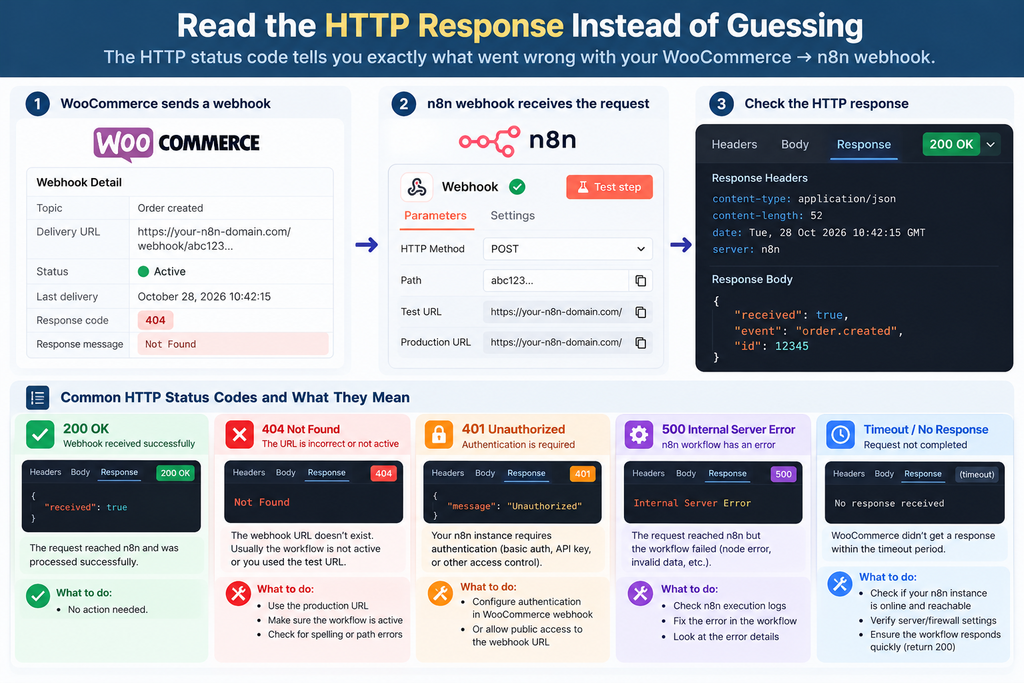
4. Read the HTTP response instead of guessing
WooCommerce delivery logs usually provide the fastest clue. Go to WooCommerce → Status → Logs and select the webhook-delivery source. Interpret the returned status in context:
- 404: Wrong path, missing webhook registration, route mismatch, or a proxy forwarding problem.
- 401/403: Authentication, application firewall, access restrictions, or blocked traffic.
- 408/504 or a connection timeout: The receiving service or proxy did not reply in time.
- 500/502/503: Server-side exception, unavailable backend, or an unhealthy upstream service.
- 2xx: Delivery was accepted by the endpoint, but downstream processing may still fail. Check n8n Executions.
A 2xx response is a delivery acknowledgement, not evidence that an email was sent, a spreadsheet was updated, or a fulfillment action succeeded. Those outcomes need their own checks.
5. Fix the public webhook URL behind a reverse proxy
A self-hosted n8n instance can run perfectly at localhost while publishing an unusable callback URL. For example, WooCommerce cannot reach a localhost address on a different server. If n8n is behind Nginx, Caddy, Traefik, or another proxy, check its publicly advertised HTTPS URL.
For supported self-hosted deployments, n8n documents the WEBHOOK_URL environment variable for overriding the displayed webhook base URL. A typical configuration concept is:
WEBHOOK_URL=https://automation.example.com/
N8N_PROXY_HOPS=1
Replace the example host with your actual reachable HTTPS hostname. Set N8N_PROXY_HOPS to the actual number of trusted reverse proxies, not blindly to one. Ensure the proxy forwards requests to n8n and preserves the needed forwarded host/protocol headers. Restart the n8n service safely after changing deployment environment variables, then compare the newly displayed production URL with WooCommerce’s saved Delivery URL.
6. Verify the event topic and the action you actually want
‘Order created,’ ‘Order updated,’ and an order moving into a paid status are not interchangeable events. If you select the wrong WooCommerce topic, the webhook may be working perfectly—just not for the action you expected.
- Open the webhook configuration and confirm its Topic.
- Identify the action you performed in WooCommerce and whether it should produce that topic.
- Use a test order to distinguish creation from later status changes.
- Inspect filters, IF nodes, and expressions in n8n that may discard an otherwise valid event.
For custom action-based topics, verify that the selected WooCommerce action is actually fired by the installed code and plugins. Do not assume a plugin-specific event is built into WooCommerce core.
7. Inspect WooCommerce scheduling and WordPress cron
Some webhook deliveries depend on background execution. If orders appear but webhook logs are missing or delayed, check WooCommerce → Status → Scheduled Actions for pending or failed related actions. WooCommerce’s own integration troubleshooting also points to Action Scheduler and WP-Cron problems as causes of delayed deliveries.
Look for a backlog, errors, hosting restrictions, or jobs that are only processed when someone visits wp-admin. On low-traffic stores, a properly configured server cron may be more reliable than relying on traffic-triggered WordPress cron. Make changes based on your hosting setup and backups.
8. If n8n says ‘webhook not registered,’ isolate the problem
The common message ‘The requested webhook is not registered’ often points to an inactive workflow, the wrong endpoint, or a method/path mismatch. But it is not always a user configuration mistake: public n8n community and GitHub reports from 2026 describe production 404s even when workflows were active.
- Confirm the workflow is published and the production URL is exact.
- Send a controlled POST request directly to the production endpoint.
- Create a minimal second workflow with only Webhook → a simple response or logging step, using a unique path.
- If every production endpoint fails while test endpoints work, collect sanitized request/response details and consult your hosting logs or n8n support.
- Do not repeatedly delete working automation flows before checking whether the issue affects the entire n8n instance.
9. Validate the payload, signature, and downstream workflow
If the request reaches n8n but the workflow fails, inspect the incoming JSON shape and the first failing node. A common error is referencing a field at the wrong depth—for example, assuming order.id exists at the root when a particular node exposes it under body or another field.
WooCommerce webhook requests include identifying headers and a signature header. For custom receivers, validate the HMAC-SHA256 signature using the exact raw request body and your configured secret before taking sensitive actions. Never place your webhook secret in an article, screenshot, or public example.
Before triggering refunds, shipments, or customer notifications, add idempotency protection using a stable delivery or order-event key. Repeated deliveries or workflow retries should not create duplicate business actions. This is an engineering recommendation, not a claim that every WooCommerce event will be duplicated.
A practical decision tree
- No webhook log at all → confirm event topic and inspect Scheduled Actions/WP-Cron.
- Webhook disabled → inspect failed delivery codes and fix the endpoint before reactivation.
- Delivery 404 → compare production URL, POST method, workflow state, route, and proxy.
- Delivery 401/403 → examine security/access rules and signature/authentication handling.
- Delivery 2xx with no desired business outcome → inspect n8n Executions, expressions, node errors, and external API responses.
- Every production webhook returns 404 but test works → investigate instance-level webhook registration and escalate with evidence.
Production readiness checklist
- The webhook points to a publicly reachable HTTPS production URL.
- The n8n workflow is published/active and uses the expected method.
- WooCommerce webhook topic and status are correct.
- A controlled test event appears in delivery logs and in n8n Executions.
- Retries, duplicate events, and downstream failures are handled deliberately.
- Secrets and personal customer data are excluded from screenshots and debug tickets.
- Server cron and queues are healthy when background delivery is involved.
Frequently asked questions
Why does the n8n test webhook work but production fails?
The test and production endpoints have different lifecycle rules. Confirm the workflow is published, copy the Production URL, and inspect the Executions view. If production still fails, isolate the route and server as described above.
Why do I see a 404 when opening the webhook in my browser?
Browsers ordinarily issue GET requests. A WooCommerce event is normally sent as POST. Test with a matching request method before treating that browser 404 as meaningful.
Does an HTTP 200 mean my WooCommerce automation finished successfully?
No. It means the receiving endpoint returned a successful HTTP response. The following workflow steps and external services can still fail.
Should I use WooCommerce Trigger or the generic Webhook node?
Choose WooCommerce Trigger when you want its managed WooCommerce event subscription and have suitable credentials. Choose the generic Webhook node when you want direct control over the WooCommerce webhook configuration and receiver behavior. Avoid accidentally configuring both for the same event.
Final takeaway
Do not begin by reinstalling n8n or WooCommerce. First check the event delivery record, response code, endpoint type, and execution history. That short evidence trail identifies whether the failure is on the WooCommerce side, in network routing, at the n8n receiver, or in downstream automation.