How to Connect WooCommerce to n8n: Step-by-Step Guide
To connect WooCommerce to n8n, create a POST Webhook node in n8n, configure a WooCommerce webhook with the matching delivery URL, test an order event, then publish the workflow and switch to its Production URL. From there, map only the fields you need and send them to Google Sheets or another destination—after securing the receiver and testing duplicate handling.
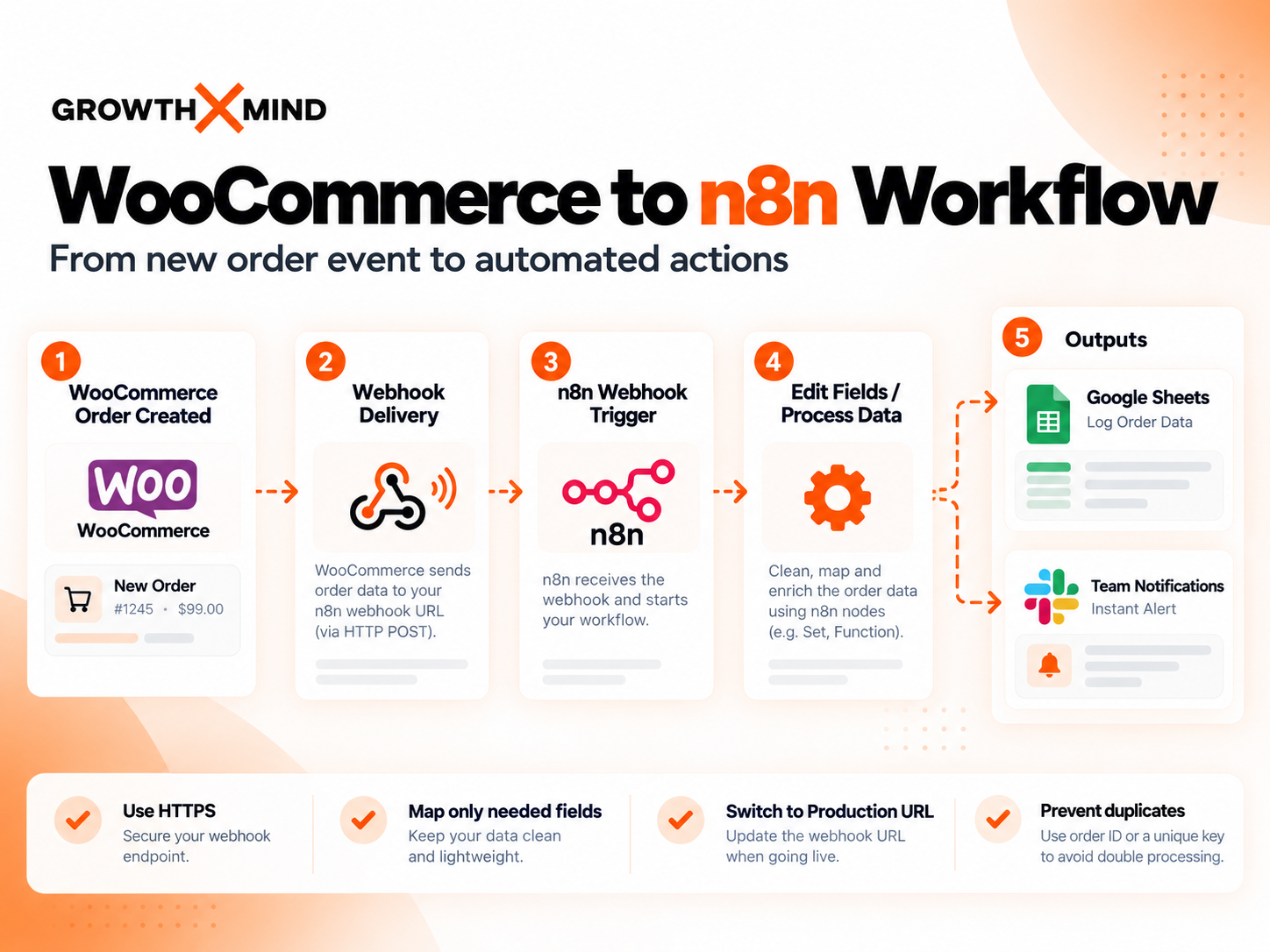
You can connect WooCommerce to n8n using an event-driven webhook so the order data reaches an automation workflow without manual copying. This guide builds a simple example: WooCommerce order event → n8n webhook → field mapping → Google Sheets. It also covers security, duplicates, and the switch from test to production.
What you’ll build
- WooCommerce emits an order-created event.
- The n8n Webhook node receives the HTTP POST request.
- An Edit Fields node extracts the values you need.
- A Google Sheets node creates or updates a tracking row.
- An execution log makes failures easier to investigate.
This is a configuration walkthrough, not a claim that this exact setup was tested on a live store. Test your own versions, endpoint, payload, and permissions before relying on it for real orders.
Before you begin
- A WooCommerce store where you can manage webhooks.
- An n8n Cloud or self-hosted instance reachable through HTTPS.
- A safe staging store or a controlled test-order process.
- A Google account and spreadsheet for the optional reporting step.
- A plan for validating webhook authenticity and protecting customer data.
For a self-hosted instance behind a reverse proxy, verify that n8n advertises your public HTTPS webhook base URL. A URL containing localhost or an internal container name cannot be used as a delivery destination from a remote WooCommerce server.
Step 1: Create an n8n workflow with a Webhook node
- In n8n, create a workflow named WooCommerce — New Order Automation.
- Add a Webhook node and choose HTTP Method: POST.
- Choose a unique Path, for example woocommerce-order-created.
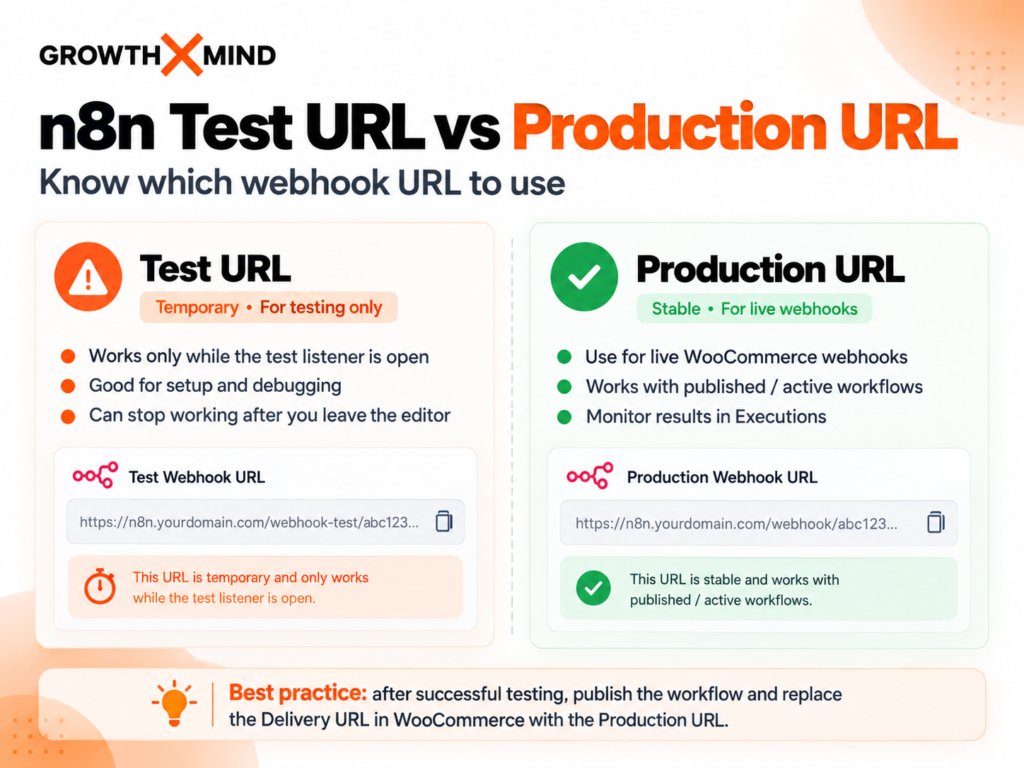
- Open the node’s Test URL tab and start listening for a test event.
- Leave the editor open while performing the first controlled test.
A Test URL is only available while a matching test listener is running. A Production URL is the one to use after the workflow is published or activated. Confusing them is one of the most common causes of WooCommerce events arriving during setup but stopping later.
Step 2: Add a webhook in WooCommerce
Go to WooCommerce → Settings → Advanced → Webhooks and choose Add webhook. For the generic Webhook node approach, create a webhook with these settings:
- Name: n8n New Order Automation
- Status: Active
- Topic: Order created
- Delivery URL: the Test URL copied from the n8n Webhook node for initial testing
- Secret: a securely generated value stored outside public articles and screenshots
Save the webhook. WooCommerce may send an initial ping, depending on the configuration. The actual order event is separate, so use a controlled order to test the intended topic.
Important: secure the receiver before production
Setting a WooCommerce webhook secret creates a signature header, but adding a generic n8n Webhook node does not by itself establish that the incoming HMAC signature is verified. Before processing sensitive or business-critical events, implement a reliable signature check against the exact raw request body or use an appropriately secured integration. Do not publish a publicly accessible endpoint that accepts unverified order payloads as trusted instructions.
Step 3: Send a controlled WooCommerce order event
- Keep the n8n Test URL listening.
- Create a test order in a staging environment or via a safe test process.
- Inspect the received payload in the Webhook node.
- Check that the topic and expected order fields match your use case.
- Inspect WooCommerce’s webhook delivery logs if the event does not appear.
Depending on the n8n node and configuration, the incoming order object may be inside a body property. Inspect the actual execution data before writing expressions; do not assume every workflow uses the same JSON path. Remove or mask personal customer details in screenshots.
Step 4: Map order data into a clean record
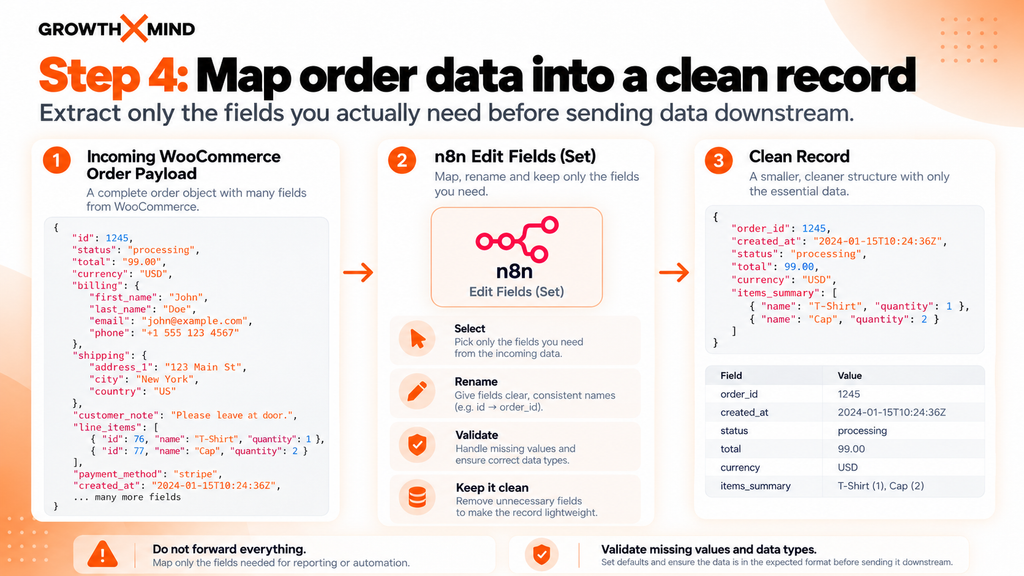
Add an Edit Fields (Set) node after the webhook. Create a compact set of fields rather than forwarding everything in the order payload.
- order_id — stable identifier for the order
- created_at — timestamp used for reporting
- status — current order state
- total — order amount as returned by WooCommerce
- currency — associated currency
- items_summary — optional product names or quantities
Validate missing values and data types. For example, totals may arrive as strings and optional fields may be absent. Keep personal data out of the sheet unless it is necessary, permitted, and adequately protected.
Step 5: Connect Google Sheets without duplicating rows
- Create a spreadsheet with the columns that match your mapped fields.
- Add a Google Sheets node and authorize the account using n8n’s supported credential flow.
- Select the spreadsheet and worksheet.
- Prefer an upsert or lookup-before-insert strategy keyed by order_id.
- Test both a new order and a repeated event to confirm a duplicate row is not created.
A blind append action may create duplicate rows during retries or manual re-runs. Where the destination supports it, make the operation idempotent so the same event has the same final effect when it is processed again.
Step 6: Switch from Test URL to Production URL
- Open the n8n Webhook node and copy its Production URL.
- Publish or activate the workflow, following the controls of your n8n version.
- Edit the WooCommerce webhook Delivery URL to use the Production URL.
- Save the WooCommerce webhook and create another controlled test order.
- Check n8n’s Executions list to confirm the production run and downstream results.
Do not judge success merely by seeing an HTTP 200 response. It confirms that the endpoint returned a successful status, not necessarily that all later workflow nodes and third-party actions completed as intended.
Step 7: Add failure handling and monitoring
- Record enough request and execution identifiers to match a WooCommerce delivery with an n8n execution.
- Handle temporary spreadsheet or API failures with a controlled retry policy.
- Alert on failed production executions.
- Avoid logging secrets or full customer details unnecessarily.
- Recheck webhook status after repeated delivery failures. WooCommerce can automatically disable failing webhooks.
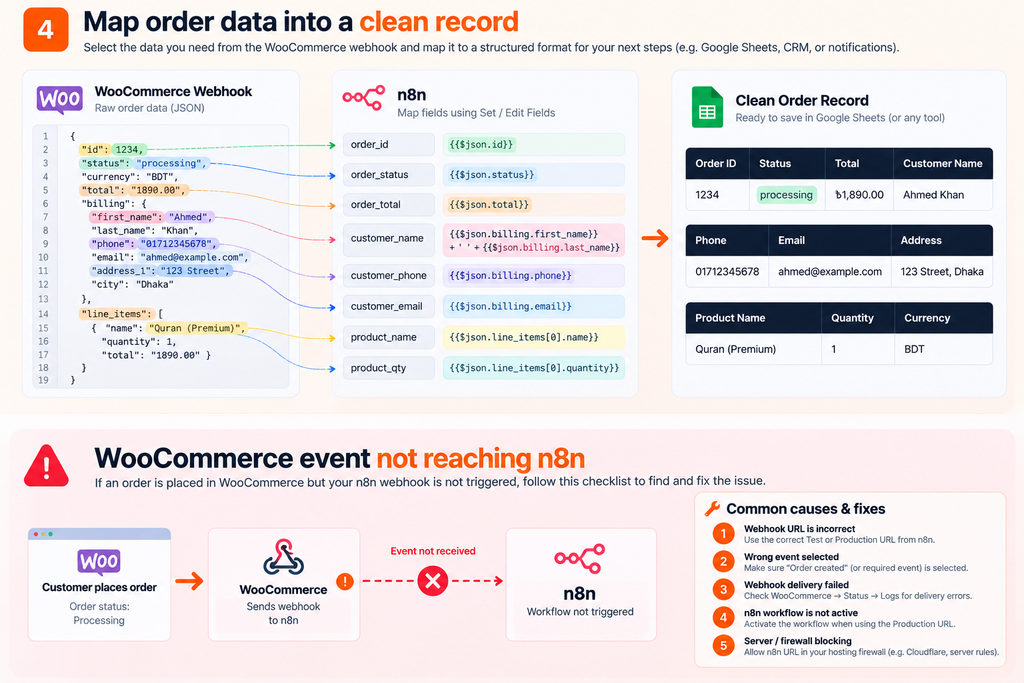
Troubleshooting: WooCommerce event not reaching n8n
Start with WooCommerce → Status → Logs and the relevant webhook delivery records. Then compare the delivery HTTP status with n8n’s execution history.
- No delivery logged: verify event topic, order action, and scheduled background tasks.
- 404: verify production URL, route, HTTP method, and workflow publication state.
- 401/403: check endpoint authentication, network restrictions, and firewall configuration.
- Timeout / 5xx: inspect service health, reverse proxy, server logs, and failing nodes.
- 2xx but missing spreadsheet row: inspect n8n Executions, field mapping, filters, and Google Sheets permissions.
For a deeper diagnostic walkthrough, read WooCommerce Webhook Not Working in n8n? 9 Fixes to Try. That existing article explains delivery failures, production endpoints, reverse proxy issues, and execution errors in more detail.
Should you use WooCommerce Trigger instead?
The dedicated WooCommerce Trigger node can manage supported WooCommerce event subscriptions through credentials. It is worth considering when your version supports the events you need. The generic Webhook node is useful when you want direct control over the receiving URL, validation flow, and event handling. Choose one approach deliberately; configuring parallel event subscriptions without a purpose can complicate debugging.
Production-readiness checklist
- Production URL is publicly reachable through valid HTTPS.
- Expected WooCommerce event topic and delivery status are correct.
- n8n workflow is published or active.
- Webhook authenticity is validated before sensitive processing.
- Order IDs are used for idempotency.
- The reporting destination handles missing values and API errors.
- Tests cover successful, repeated, and failing deliveries.
- Only necessary customer data is stored and shared.
- You can inspect executions and respond to failures.
Frequently asked questions
Can I connect WooCommerce to n8n without a paid integration plugin?
You can use WooCommerce’s built-in webhook feature with a generic n8n Webhook node, provided your store and n8n instance can communicate securely. Hosting, infrastructure, or third-party services may still have costs.
Why does the test workflow work but the production workflow does not?
Test listeners are temporary. Switch WooCommerce’s Delivery URL to the Production URL, publish the workflow, and check the execution history. Also examine firewall and proxy routing when production requests return 404.
Do I need WooCommerce REST API keys for this method?
For a generic inbound webhook from WooCommerce to n8n, the webhook configuration itself is the main integration point. REST API consumer keys are needed when your workflow makes authenticated WooCommerce API calls, or when using an integration node that requires them.
Final thoughts
Start with one controlled order event and one dependable destination. Once the event arrives reliably and safely, add the transformations and downstream actions you actually need. A small, observable automation is more useful than a complex workflow that silently fails.