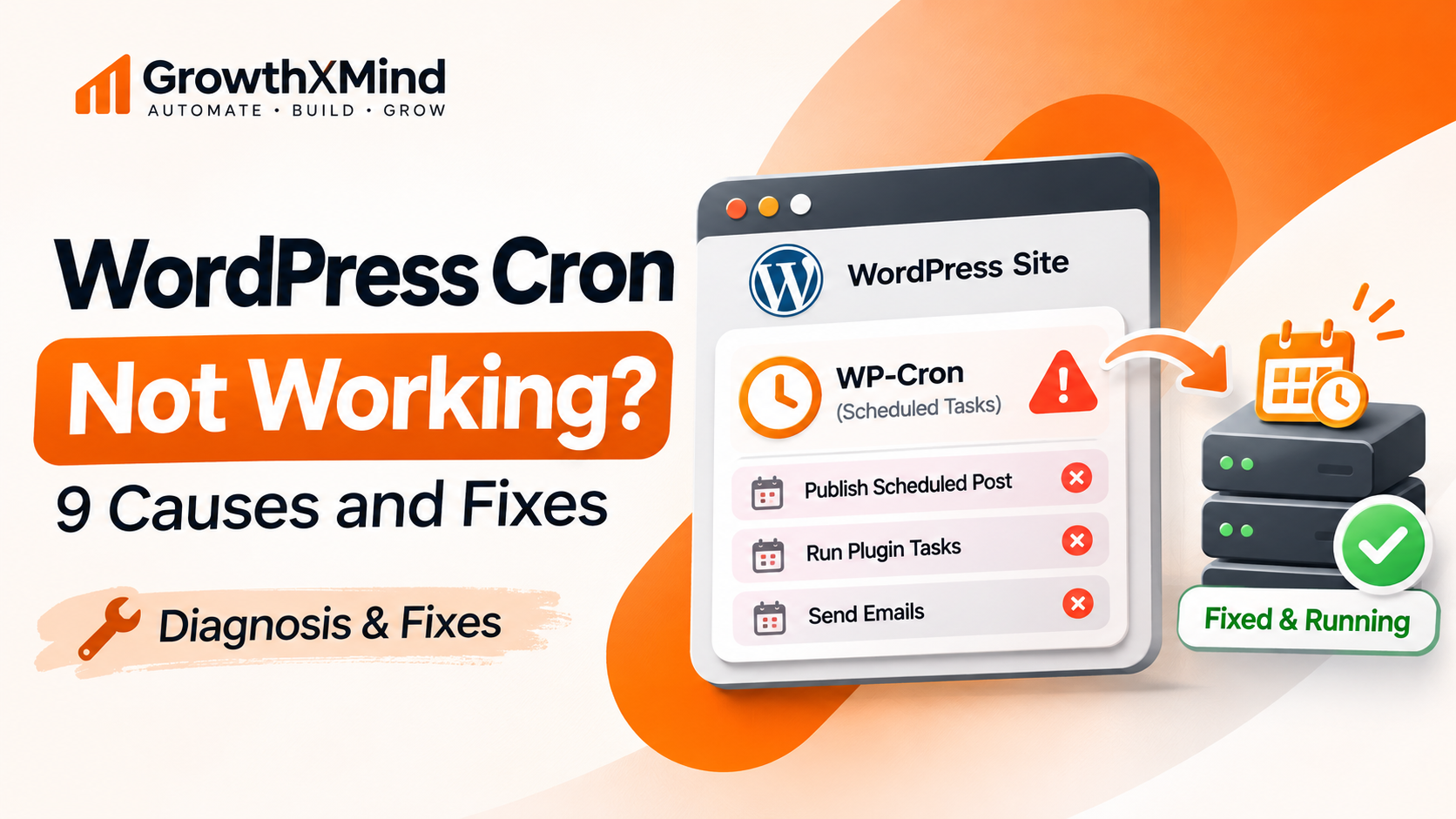
WordPress Cron Not Working? 9 Causes and Fixes
If WordPress cron is not working, first check Tools → Site Health for missed scheduled events and loopback errors. Then inspect scheduled tasks, verify that WP-Cron has not been disabled without a replacement, and test whether your hosting can reach wp-cron.php. On busy or timing-sensitive sites, a correctly configured server cron can provide more predictable scheduling.
WP-Cron is WordPress’s event scheduler, used for scheduled posts, maintenance, and plugin tasks. It is not a continuously running Unix cron daemon: it checks due events when the site receives requests. This means delayed tasks are not always evidence that WordPress is broken. The goal is to identify which part—scheduling, triggering, or task execution—is failing.
Quick diagnosis: identify the symptom
| Symptom | Start here |
|---|---|
| Scheduled posts missed | Site Health + WP-Cron events |
| WooCommerce tasks stuck pending | WooCommerce → Status → Scheduled Actions |
| Every scheduled event is late | DISABLE_WP_CRON + server cron + loopback |
| Only one plugin’s job fails | That plugin’s error logs and task callbacks |
| WP-Cron runs only after site visits | Traffic-triggered scheduling; consider system cron |
How WP-Cron actually works
WordPress stores scheduled hooks with due timestamps. A site request checks for tasks that are ready and attempts to spawn a nonblocking request to wp-cron.php. The process can be delayed by low traffic, disabled scheduling, failed loopback requests, or code that errors when a callback runs. In recent WordPress versions, the spawn mechanism is designed to avoid unnecessarily delaying page output, but the scheduler is still request-triggered.
For background WooCommerce work, Action Scheduler adds its own queue on top of WordPress scheduling. A healthy WP-Cron trigger does not guarantee a given Action Scheduler job completed; inspect the job’s status and logs separately.
1. Diagnose low traffic before assuming a broken cron
If a task is due at 2:00 PM but the next request arrives at 3:00 PM, ordinary WP-Cron may run late. That is expected behavior on low-traffic websites, not necessarily an error. Check whether tasks execute after a visit and whether accurate timing matters for your workflow.
Fix: for important scheduled publishing, subscriptions, or time-bound automation, consider a server-side scheduler that triggers WordPress on a regular interval. Do not change anything until you verify the hosting plan supports a cron job and identify whether another scheduler already exists.
2. Check whether DISABLE_WP_CRON is enabled
A hosting provider or performance plugin may have configured DISABLE_WP_CRON in wp-config.php. This is valid when a real system cron replaces the page-load trigger—but it creates missed tasks if no replacement exists.
define( 'DISABLE_WP_CRON', true );If you find that constant, first look for a real cPanel or server cron job. If a working scheduler is present, leave it alone. If not, arrange a proper replacement before changing the constant. Make a backup, and never paste private wp-config.php values into a support forum.
3. Investigate failed WordPress loopback requests
WordPress uses loopback requests—requests back to its own site—to start scheduled events and validate certain administrative changes. Under Tools → Site Health, look for messages about loopback failures or missed scheduled events. A firewall, HTTP authentication, DNS/SSL misconfiguration, or conflicting plugin can prevent the request.
Fix: compare the site’s configured HTTPS URL with the actual public URL, check server logs, and ask the host to inspect outbound requests to the same site. If a plugin/theme conflict is suspected, reproduce the issue on a staging copy rather than disabling production features blindly.
4. Check the actual scheduled-event queue
A message saying ‘scheduled event failed’ is a symptom. Identify the hook that is late, its scheduled time, and the recurrence. WP Crontrol is one tool for inspecting WordPress cron events, but installing it does not itself fix a scheduler that cannot run. If you use WP-CLI and have appropriate server access, inspect cron events with the CLI as another option.
wp cron event listLook for patterns: are all events overdue, or only one hook? A single recurring hook that fails points toward its callback or plugin. A site-wide backlog points toward triggering or server constraints.
5. Separate WooCommerce Action Scheduler from WP-Cron
WooCommerce uses Action Scheduler for background tasks including webhook and subscription-related processing. Open WooCommerce → Status → Scheduled Actions and filter Pending, Failed, and In-progress jobs. Review the action hook and logs before retrying anything.
If the queue has many overdue jobs, confirm the queue runner is being triggered. If one job repeatedly fails, diagnose the underlying plugin, API call, or PHP exception. Avoid indiscriminately rerunning payment, email, or fulfillment jobs: these can have real business effects.
For webhook symptoms that may be related to delayed events, see WooCommerce Webhook Not Working in n8n? and our WooCommerce–n8n setup guide.
6. Examine plugin errors, PHP failures, and resource limits
A task may be scheduled and triggered correctly but fail during its callback. Review error logs, WordPress debug logs where safely enabled, and WooCommerce task logs. Look for fatal errors, memory exhaustion, database timeouts, or an unavailable external service.
Fix the failing operation instead of repeatedly re-triggering it. When debugging, avoid publicly exposing logs containing secrets or personal data. Do not enable unrestricted debug output on a public production site.
7. Confirm server time and timezone assumptions
A scheduled event may look late because the site timezone, plugin configuration, or reporting dashboard displays a different timezone. WordPress internally uses timestamps and its configured timezone to calculate scheduling. Check Settings → General, confirm the intended timezone, and compare timestamps consistently before changing the queue.
8. Verify cache, CDN, and security restrictions
Page caching alone does not prove WP-Cron is disabled, but highly aggressive caching or edge delivery can reduce requests reaching WordPress. Security layers may also block loopback traffic or requests to wp-cron.php. Check whether requests actually reach the WordPress application and whether the server can call its own URL.
Do not simply whitelist every source or remove protections. Prefer narrowly scoped rules based on confirmed request logs, and involve the hosting provider if a firewall or reverse proxy is involved.
9. Configure a real server cron when scheduling accuracy matters
For websites that need more predictable execution, WordPress’s official guide recommends using the host’s system task scheduler to request wp-cron.php at chosen intervals. On Namecheap cPanel, look for Cron Jobs under the hosting dashboard; availability depends on the hosting plan.
A conceptual cPanel command is shown below. Replace example.com with your site, use your host’s supported curl binary/path, and review cron frequency and logs. Five-minute intervals are an illustrative starting point, not a requirement for every site.
*/5 * * * * /usr/bin/curl -fsS --max-time 30 https://example.com/wp-cron.php?doing_wp_cron > /dev/null 2>&1The HTTP request has no secret token in this example. Your host may recommend PHP CLI instead. Once a real scheduler is confirmed to trigger jobs correctly, disable duplicate traffic-triggered spawning by setting DISABLE_WP_CRON to true in wp-config.php. Do not disable WP-Cron before the replacement is operating.
How to confirm the fix worked
- Record one overdue or upcoming harmless scheduled event and its due time.
- Confirm whether it completes after the planned trigger interval.
- Check Tools → Site Health for remaining scheduling and loopback warnings.
- On WooCommerce sites, review Pending/Failed Scheduled Actions again.
- Test one noncritical scheduled post in a staging environment.
- Check logs after several intervals to ensure the issue does not immediately return.
Frequently asked questions
Does WordPress cron run every minute?
No. WP-Cron normally checks due events when requests reach WordPress. A separate server cron can trigger wp-cron.php at a predictable schedule if configured.
Does the WP Crontrol plugin fix missed cron events?
WP Crontrol helps inspect and manage scheduled WordPress events. It does not automatically repair blocked loopback requests, missing server cron jobs, or failing plugin callbacks.
Should I set DISABLE_WP_CRON to true?
Only when you have a working alternative scheduler or a specific reason to disable WordPress’s normal trigger. Turning it on with no replacement can prevent scheduled events from running.
Why are WooCommerce scheduled actions pending even when WP-Cron works?
WooCommerce’s Action Scheduler has its own queue and execution conditions. Its jobs can fail from plugin errors, locked/stalled queues, resource problems, or external API issues. Check individual action logs.
Next step
Start by checking Site Health, the overdue event list, and whether your hosting has a functioning scheduler. If every event is delayed, investigate WP-Cron triggering and loopback requests; if one task fails, diagnose that task. This is faster—and safer—than changing cron settings at random.